It can
- Receive alerts
- Send an answer or a prompt
- See session names and states
The Android phone app and the Wear OS watch app are available now. They are part of the same Stillshell account — there is no separate price.
Available / Android phone app Available / Wear OS watch app
See the sessions on all your computers, with their names and state — Running, Done, or Needs you. Open one and use a real terminal: colours, scrollback, the cursor, wide characters, and CLI logos and box lines drawn properly.
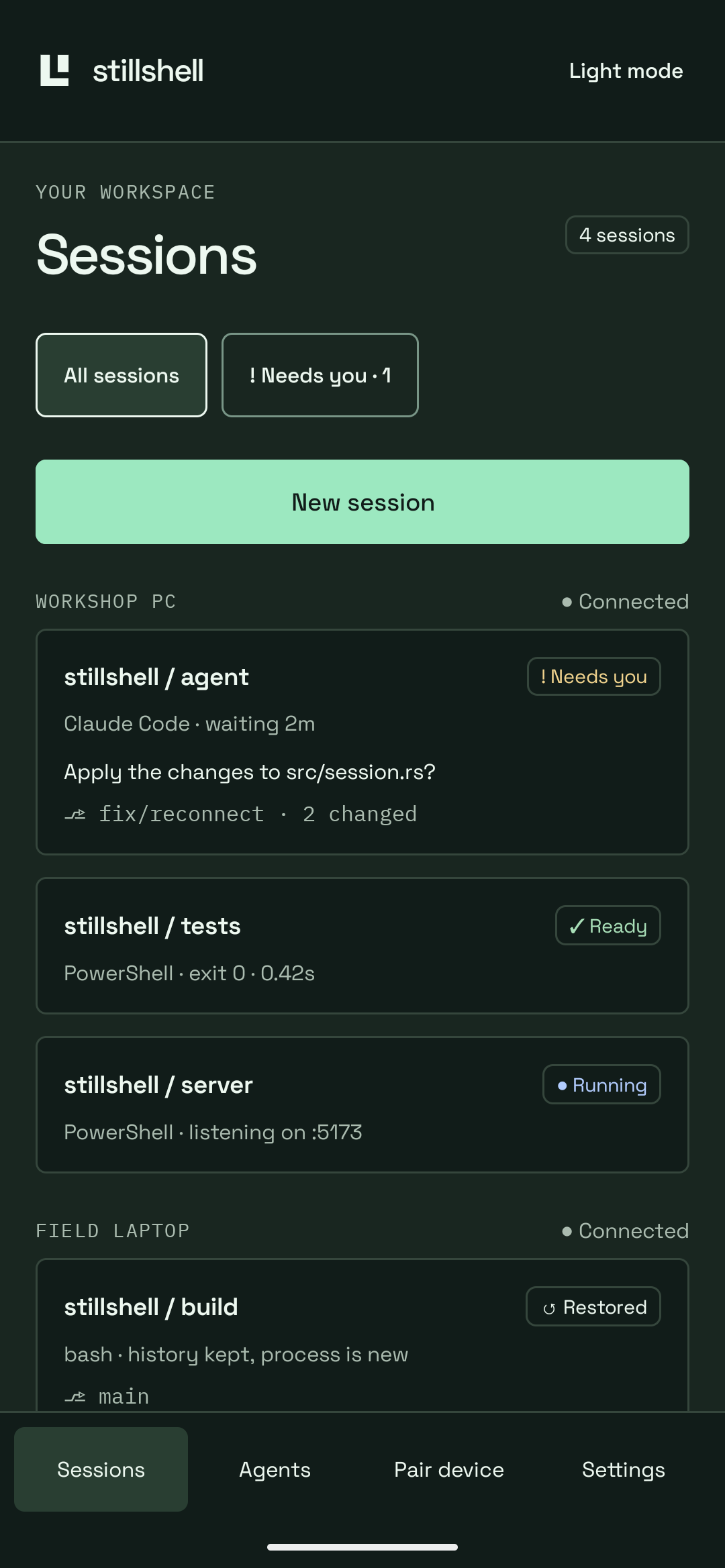
You write in a box and press Send. A key row sits above the keyboard:
Saved prompts and quick commands are one tap away.
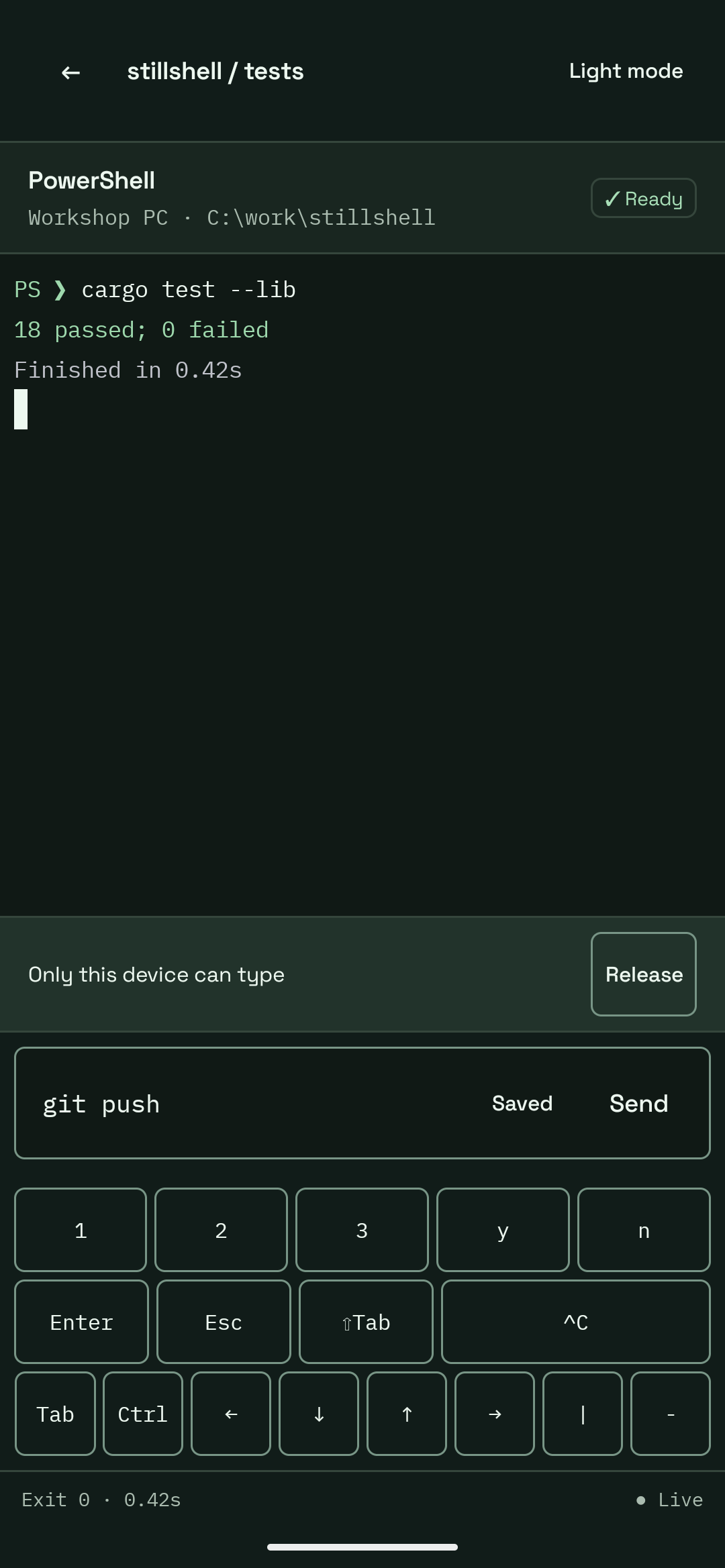
When Claude Code, Codex or OpenCode asks a question, the phone shows the question with one button per choice. Your choice is typed into that exact session.
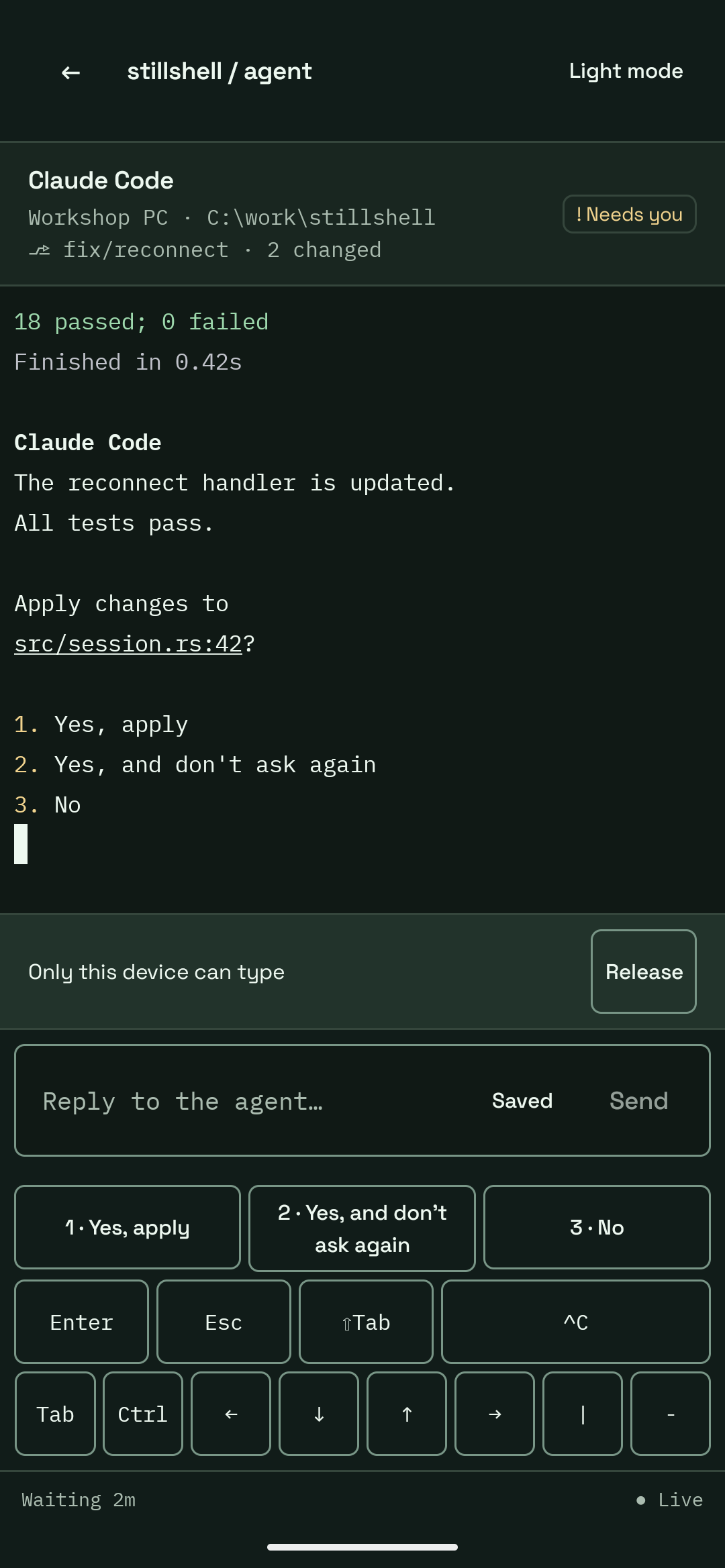
The watch pairs through the Android phone app, with the same safety-code check. After pairing it works without the phone nearby — it talks to your computer through the cloud, and everything stays sealed end to end.
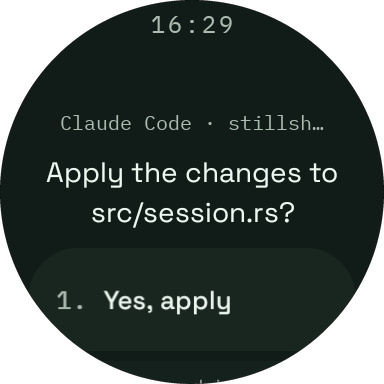
Tap Speak and say what you want the agent to do. The watch shows the text. Nothing is sent until you tap Send. Then the text is typed into the session and Enter is pressed.
The one place encryption pauses →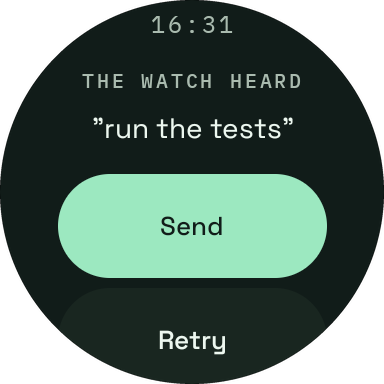
On by default. Command alerts are skipped while you are typing at the computer. A burst of failures folds into one alert: “3 commands failed”. Questions and “agent finished” alerts are never held back.
The watch lists your sessions with the same names as the desktop’s tabs, and their state.
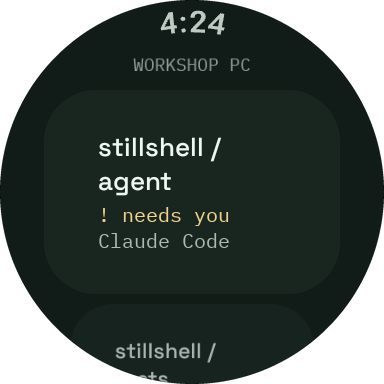
The watch is its own trusted device. It does a few things, and cannot do the rest.
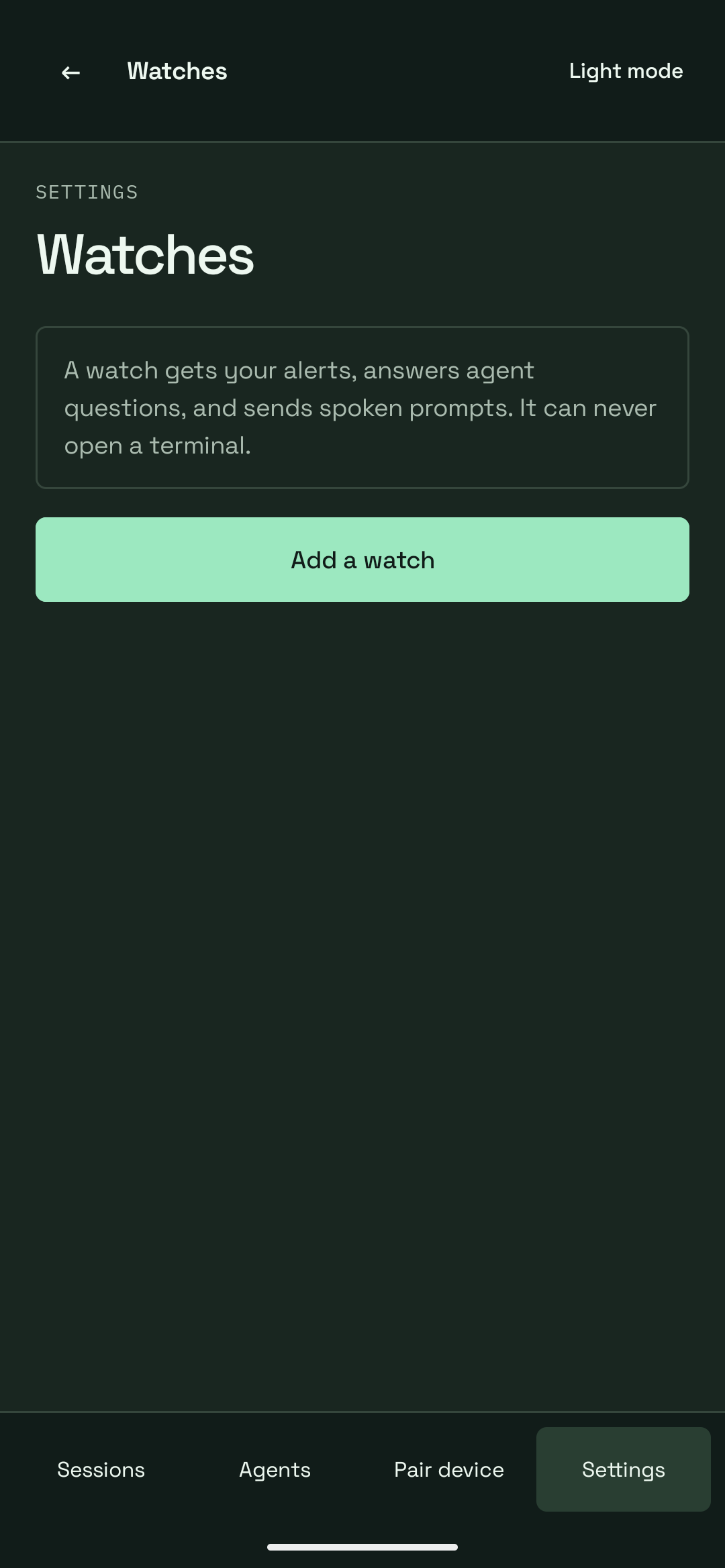
The watch pairs through the phone app, with the same safety-code check. Settings > Watches on the phone lists your paired watches; add or remove a watch there.
Remove it from the phone, the desktop, or the watch itself. A removed watch wipes its keys.
A watch voice note is the only thing that leaves end-to-end encryption. It is said plainly here, and the watch shows it once, before the first voice note.
Tap Speak and talk. Up to 60 seconds a note, and 30 notes an hour per watch.
The short recording goes to Stillshell’s server, which turns it into text and sends it back. Speech-to-text runs on Google Gemini through OpenRouter, with a setting that asks providers not to keep or train on it. If that service is down, Stillshell’s own speech engine on our server does it instead. Audio and text are not stored and not logged on our server.
The watch shows the text. Nothing is sent until you tap Send. The prompt you then send from the watch travels end to end encrypted, like everything else.
The Android phone app and the Wear OS watch app are available now, as part of your Stillshell account. The watch pairs through the Android phone app.
No. They are part of the same Stillshell account and the same plan — $8 a month or $80 a year.
It can never see terminal output or screen text, open a terminal, approve or remove devices, or read your synced records. It receives alerts, sends an answer or a spoken prompt, and sees session names and states.
14 days free. No card needed. Windows available now.