Persistent sessions
A local agent owns each shell. Close the app and the process keeps running. Reopen it to replay the retained output.
Every shipped capability, grouped by the work it helps you do. Windows is available now. Planned releases are called out where they appear.
Your shells live on your computer, not inside the app window.
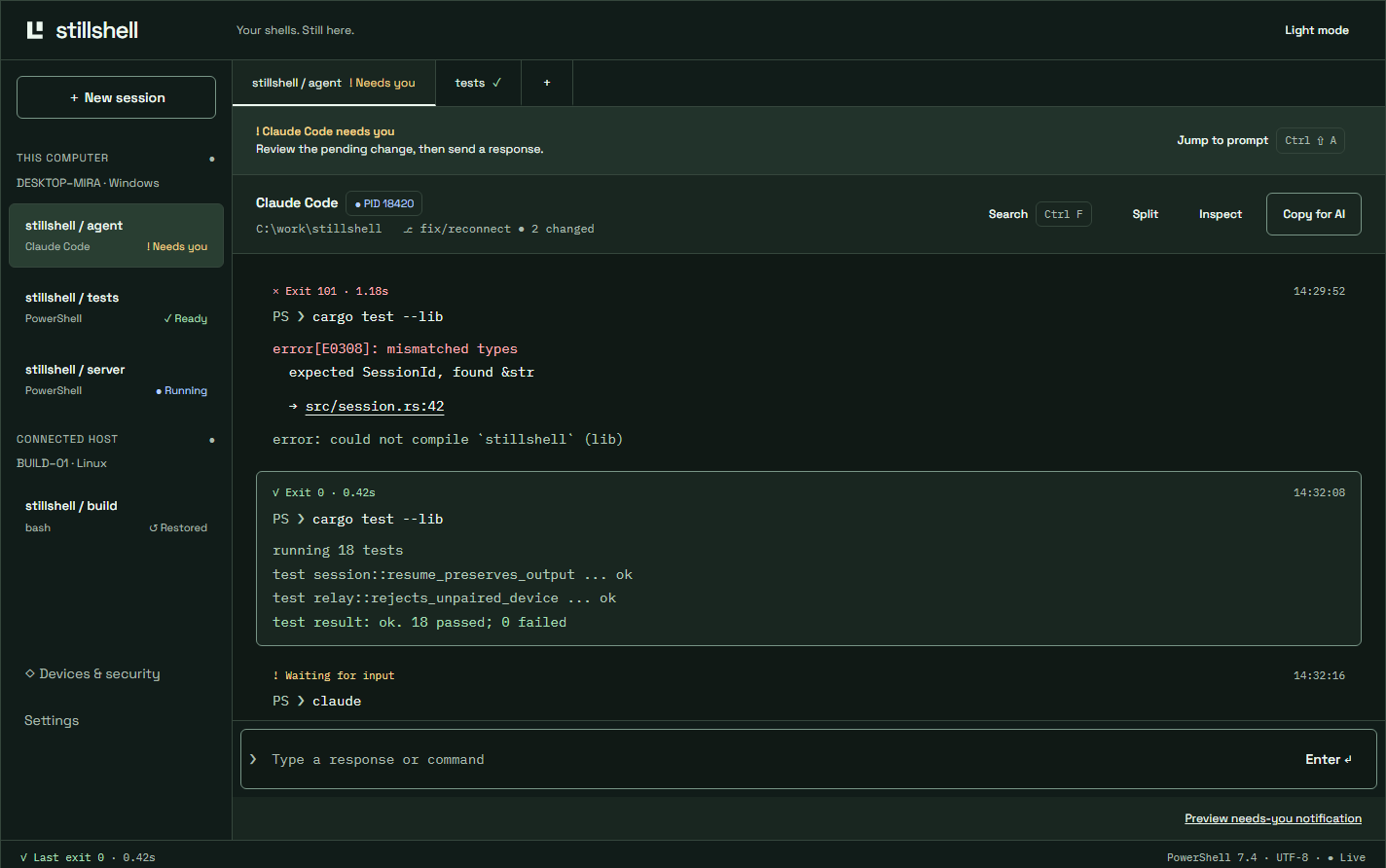
A local agent owns each shell. Close the app and the process keeps running. Reopen it to replay the retained output.
Sessions reopen in their folders. Claude Code resumes with claude --continue; Codex uses codex resume --last. Stillshell tells you first. Other sessions tell you what was running.
Output is sealed on disk with a key kept outside the database, then trimmed by age and size. “Restored” and “Live” are distinct states. A reboot starts a new process.
See the tool, task, folder and state of each agent across your computers.
app-agents.pngPhoto coming after the next app release.
Hooks, bells and notification signals tell Stillshell when Claude Code, Codex or OpenCode needs you. Answer buttons type your exact choice into that session.
Set up agent hooks in one click. Task titles tell you what is happening. Jump to the next session that needs you. CtrlShiftA
Long-command alerts tell you when a build or test completes while you are elsewhere. States say Running, Done or Needs you, with symbols.
Save prompts globally or per folder. Put frequent commands in buttons above the terminal. Open the prompt library with CtrlShiftP
Copy last answer or Copy for AI produces clean Markdown. Send a selection, failed command or file to the agent next to it. Dropped files and pasted images become typed paths.
An opt-in MCP server lets AI tools read your terminals. It is off by default, read-only, and cannot type.
Keep Claude Code, Codex and OpenCode logins and supported keys together. Choose per session.
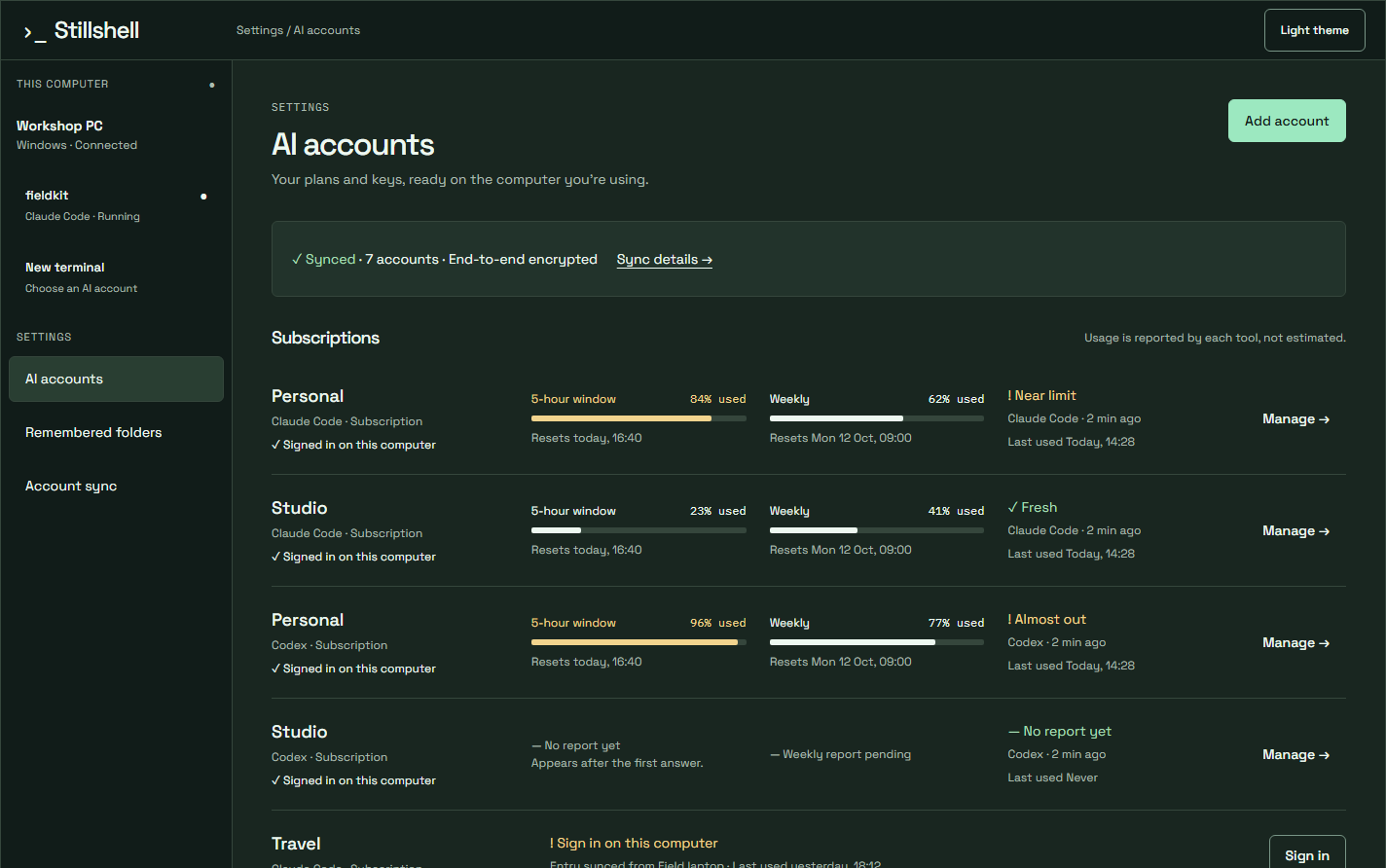
Each subscription has its own sign-in folder. Add Anthropic, OpenAI, Google and OpenRouter API keys. Keys go only to the program you start with them.
Type claude or codex to choose an account. See usage before choosing. Remember it for the folder, or let the last-used account start if you do not answer. ↑↓Enter1–9
Five-hour and weekly limits, reset times and report freshness come from Claude Code and Codex on your computer. Usage is not sent to Stillshell. API-key usage reporting is not available yet.
Restart the tool with another account and resume the same conversation. Keep YOLO / skip-permissions, sandbox, approval and model settings. Review a busy-tool interruption first. CtrlShiftU
Configured Codex providers appear beside subscriptions in the switch menu. Review the destination provider and model before switching.
Approved devices hold the keys to encrypted account records. The server stores sealed data. Subscription entries sync; sign in once on each computer because tokens rotate.
Commands, paths and links become useful parts of the workflow.
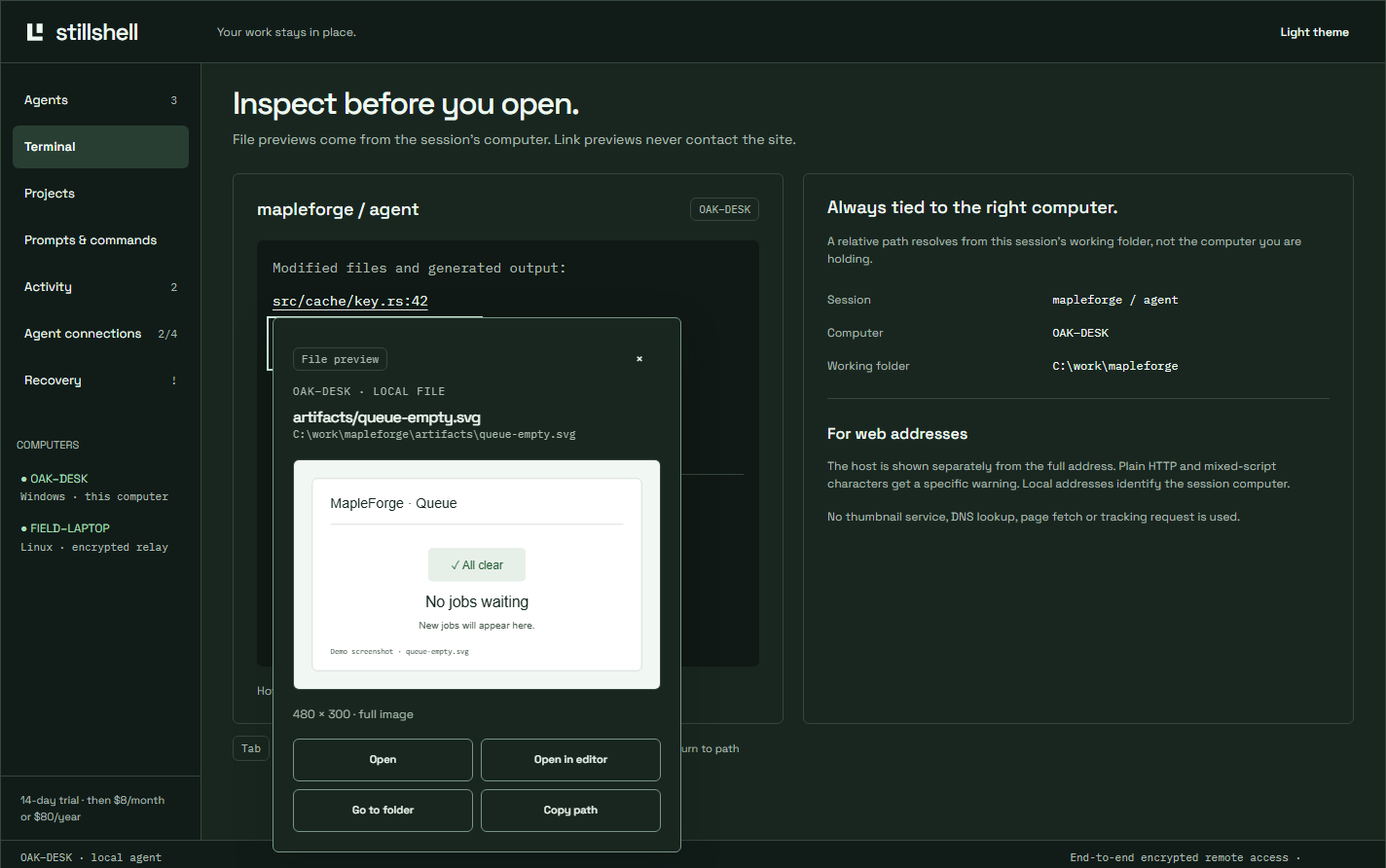
Hover an image for a thumbnail, code for lines around an error, or a folder for its contents. Open, open in your editor at the line, go to the folder or copy the path. CtrlClick
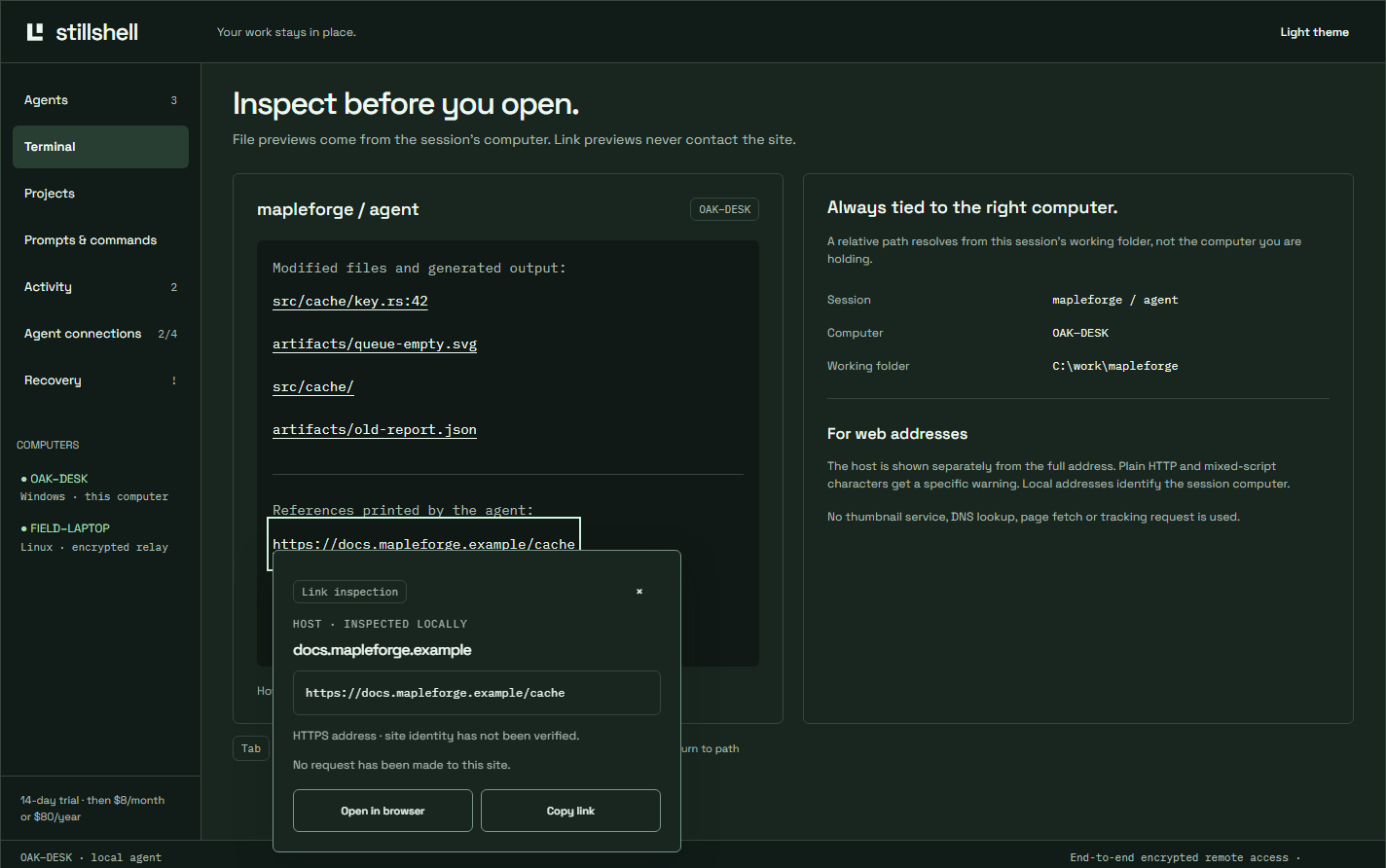
See the site and full address. Open or copy the link. Plain HTTP and unusual characters get warnings; local addresses say “This computer”. Hovering never contacts the site.
Each block shows exit code and duration. Jump between commands, copy one command’s output and search the buffer. Folder, git branch and last exit stay visible.
Put two sessions side by side. Find every action in the command palette. CtrlK
Keel themes keep the terminal readable. Block and line characters join correctly, including CLI logos.
Interrupt even when a program captures the mouse. Programs need permission to copy to your clipboard. CtrlC
See what ran, what changed, and who answered while you were away.
app-record.pngPhoto coming after the next app release.
Inspect commands and changed files next to the session. Each file shows added and removed line counts, with Copy diff.
Search starts, restores, AI tools, requests for attention, device replies and command exits. The record stays on your computer with the same retention as history.
Start a session in a folder you used before. Less navigation before the work begins.
Save a project’s session names, folders and layout. Open them together next time.
Give an agent its own git worktree so parallel tasks do not share a working tree.
Pair another computer today. The Android phone companion is planned.
Scan a code. Compare the same eight-group safety code on both devices before approving. Every computer appears once, with its online state.
Open, watch and type into your computers’ sessions. A visible input lease names the one device that can type at a time.
The Android companion will let you start an agent and answer it from your phone. Phone push notifications and file previews from other computers are also planned.
Your shells stay on your computer. The relay forwards frames it cannot decrypt.
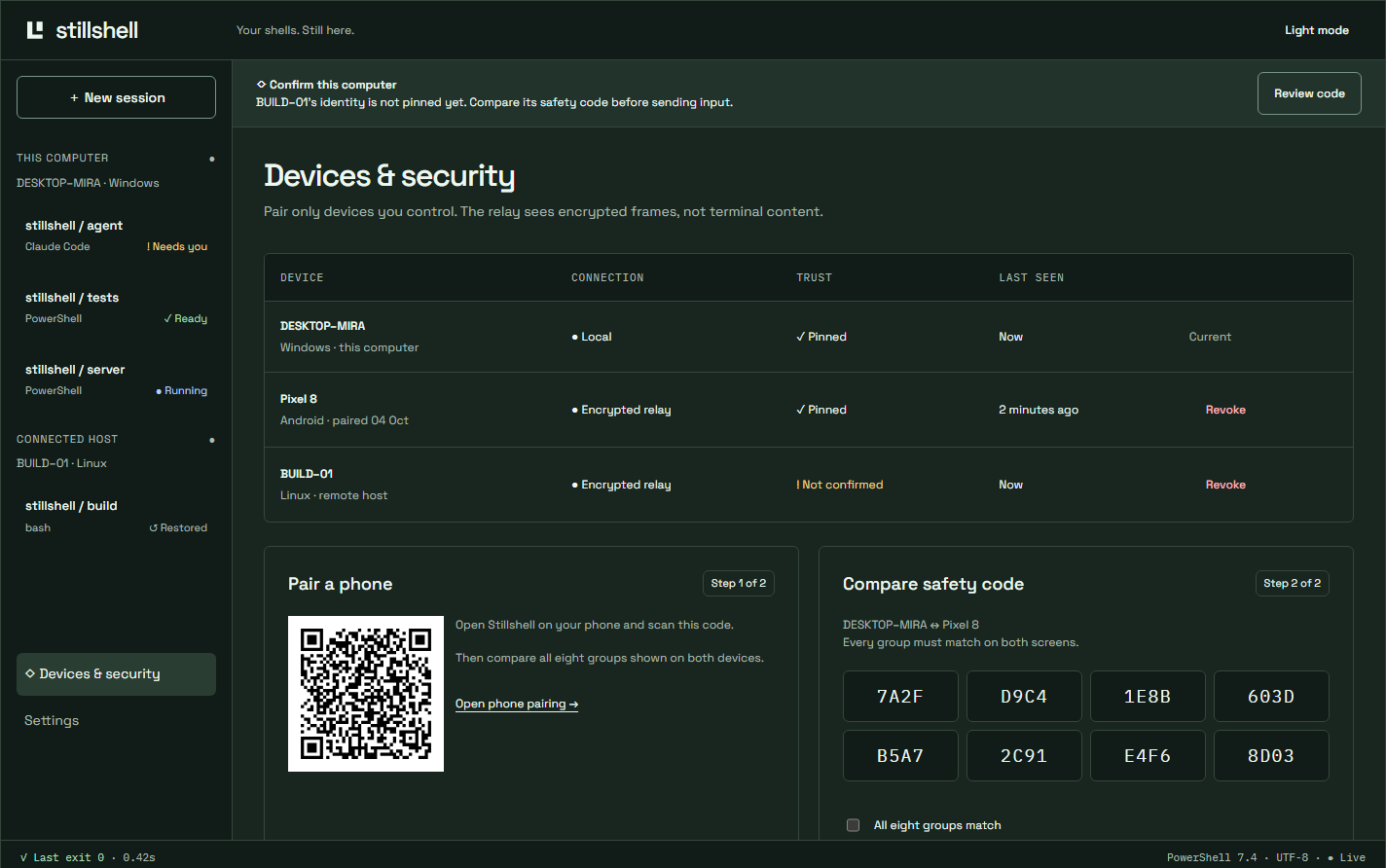
Only a device you have already approved can approve a new device. The cloud’s device list is not enough. Compare safety codes during pairing.
Stored history, session keys and tokens are sealed on disk. Signed updates are checked against a pinned key.
See signed-in sessions and devices, sign one out and review account activity. AI read access starts off and never grants input.
Create your account and manage your plan on stillshell.com. The app opens the browser to sign you in.
Create an account to start the 14-day trial. Confirm your email, reset a password, redeem a code, export data or delete your account on the website.
Sign in in the browser and press Allow. The app proves it holds its device key; a stolen sign-in link alone cannot sign another device in.
$8 monthly or $80 yearly. Cancel any time. AI subscriptions and API usage are separate.
Offers can add free days, extend a trial or add free months. Card-required offers and payment discounts await payment-provider support. Those offers can give a percentage or fixed amount off the first payment, a set number of months or every payment, with monthly or yearly restrictions.
Anyone with a confirmed matching company email can claim the offer. Free-mail domains are refused. An optional seat cap limits claims; eligible offers can appear on the account page.
Codes can have start and end dates, new- or existing-customer rules, and plan restrictions. Shared codes can have use limits; single-use batches export as CSV. Operators can disable codes or revoke a redemption.
14 days free. No card needed. Windows available now.